Showing posts with label Android. Show all posts

Tips: developing for Android

Here I want to post a list of some interesting facts about developing applications for Android. Although, my experience with it isn't huge, I believe this information will be useful for starters who want to create an Android application.

Lets get started.

  1. To publish your application to Android market you'll need to register and pay registration fee - $25. It's paid only once and is not returned.
  2. Name your application simple. If you application isn't part of your brand (like Facebook, Gmail or Twitter), it's the best to title application with some description of it. For example, Send Links and Phone 2 Chrome are good names, but SyncTab is not. At least, call it like 'SyncTab - send links easily'. The name should help user to understand what's your application for.
  3. Don't hard code values. Move them to appropriate files like strings.xml, integers.xml, arrays.xml, colors.xml etc. This will save your time to localize application and hone application for different devices.
  4. Use styles and themes.
  5. Prefer to use Content Providers to work with database.
  6. Use different forums to find first users and beta testers.
  7. Release often. This will help to get new users faster. Each time you release a new version of application, it's added to the Just Released feed. Prefer to make such releases before or on weekends.
  8. Make a nice but simple icon. Follow Android's style guide.
  9. Remember that you'll need a promotional and feature graphics.
  10. Use different techniques to cleanup the code. Like Android annotations, intent helpers etc.
  11. Optimize!
  12. Investigate Android applications of other developers, like iosched application from Google.
  13. You can use Google Analytics to track not only usage of application, but also errors
  14. Save resources: memory, cpu, network traffic.

SyncTab architecture. Part 2. Android Application

This post is a continuation for recent post with description of SyncTab server application. In this post I'm going to tell about SyncTab Android application.

As android application is very simple, I will make a very short description.

SyncTab application has a few activities only: the main activity is a list of shared links. When user first opens an application, she can either login into or register a new account. There is also a way to reset a password. User can only reset password, as original password is not stored; only salted hash of the password is stored on server. After user is signed in, she can see the list of links, edit settings and tags etc.

When user is authenticated and device is online, application starts two services: SyncService and RefreshService.

RefreshService connects to the server and checks if there are any new links to open on this device. Each device has an associated tag and opens only links with specified tag. Android device by default checks for the links with Android tag, and opens them if any. By default, RefreshService checks the server every minute if connection is up. But it is possible to change a period time or disable this service at all (if user doesn't want to receive links on device).

SyncService is used to synchronize android application status with server. Application allows to send links, when device is offline. In this case, link can't be send, but is added to the sync queue. Well, there are other operations that can be proceeded offline, like logout, remove link, re-send link, add/edit/remove tags. If device is offline, such operations are added to the sync queue. When network is app and device is online, SyncService checks the sync queue and executes each task in it. Sync queue tasks are persistent and stored in the database.

No hard coded values, except preferences names. Everything moved to the appropriate files like strings.xml, array.xml, integers.xml, colors.xml etc. Values vary not only for different localization, but for different devices (e.g. phone and tablet).

Documentation is available only online from synctab website. Website has two versions: for normal clients and for mobile clients. While, my phone will be redirected to the mobile version, a tablet will open a normal version of website.

There are two managers for each entity, a regular manager and remote manager. Application works mostly with regular manager, which itself calls remote manager if need. For example, there are TagManager and RemoteTagManager. To call an operation, activities use SyncTabFacade, while SyncTabFacade calls managers.

Activities started using special IntentHelper class, that provides a static functions like showLoginActivity(), showAboutActivity(), browseDocumentation() etc.

Links' favicons are cached as files in the cache directory. When a list of new links is retrieved, a favicon preloader thread starts. Thus, favicons are downloaded in background. If device is offline, and favicons can't be loaded, than an appropriate task is added to the sync queue for each favicon (and next time device is online, the favicons will be downloaded).

Well, looks like nothing interesting I can tell more about SyncTab android application.

So I decided to write a list of helpful facts about developing for Android as a separate post – "Tips: developing for Android".

SyncTab architecture. Part 0.

A few months ago I was willing to write my own android application. And I also had a need - a way to send easily links from my phone to my browser and vice versa. Well, my phone is under Android, and my favourite browser is Chrome. So I decided to create the app to satisfy my desire to create and release Android app and make my life easier.

And as result of this, I have made a set of applications that forms a SyncTab. Obviously, those applications are Android application, server-side application and Chrome extension.

This post is like a preface, and next few posts will include a short technical description of each application.

Well, the work of application is very simple: android app and chrome extensions are both clients for the server. There is no web interface for application. User can get the list of all sent links and manage them using Android application.

In most functionality, Android app and Chrome extension are similar. But the only way to see the list of sent links is using Android application.


Some links:

Android Emulator Snapshot

Here I'm going to describe a simple way to decrease a start up time of the Android Emulator. This is possible after snapshot saving and loading option is enabled.

Open your terminal and enter the command:

$ android

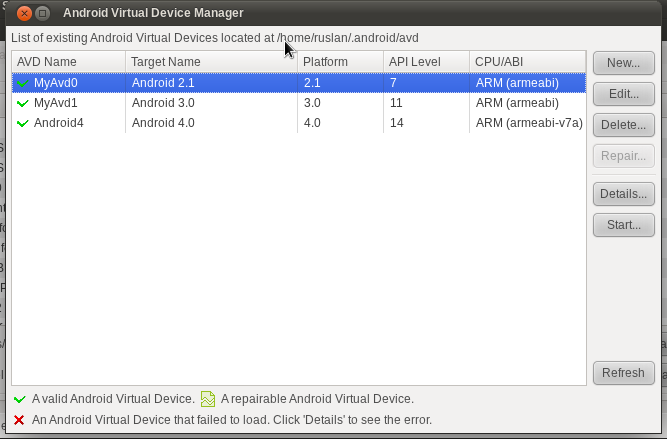
Open Android Virtual Device Manager from menu Tools -> Manage AVDs... You'll see a window like this:


AVD Manager


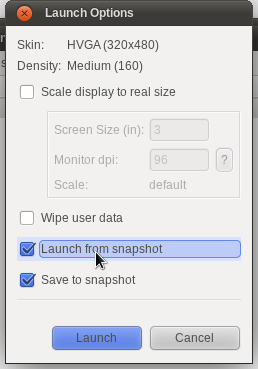
Select your working AVD from the list and click on "Edit" button. In the opened dialog check on to enable Snapshot. Save changes. Then click on the "Start..." button and check "Launch from snapshot" and "Save to snapshot" options.


Launch options


If you haven't enabled "Saving to snapshot" option before, it may take a time to start the emulator first time. After it is started, you can close it and start again. This time emulator will be started much faster.

SyncTab

I've released today an updated version of a SyncTab Android application.

Well, a few words about what is a SyncTab. SyncTab is an application to send an interesting links and browser tabs from Android phone to desktop browser (current only Chrome is supported). To start using SyncTab, user need only to download and install Android application and Chrome extension. User will need to register an account using either Android application or Chrome extension and then he/she can easily send tabs from phone to desktop. There is more information about this in the Getting Started article.

So what's new in the version 0.6? Not much:
  • added an about page to show current user name, website link, link to submit issue or contact
  • get the correct page title and description with regards to the page charset

But I have more plans for version 0.7:
  • share tabs from browser to the phone
  • tag and filter shared tabs

So try SyncTab now, and wait for a new features.

Performance Optimization for Android

Here is the list of the performance optimization tips when developing Android applications:

  • Avoid creating objects if you don’t need them.
  • Avoid memory allocation if you can work without it.
  • Array of ints is preferred than array of Integers.
  • Two parallel arrays of ints are a lot more efficient than an array of (int,int) objects. Two parallel arrays of Foo and Bar are a lot more efficient than an array of (Foo,Bar) objects.
  • Avoid creating short-term temporary objects if you can.
  • Make your method static. Invocations will be about 15%-20% faster. It's also good practice, because you can tell from the method signature that calling the method can't alter the object's state.
  • It's reasonable to follow common object-oriented programming practices and have getters and setters in the public interface, but within a class you should always access fields directly.
  • Direct field access is about 7x faster than invoking a trivial getter.
  • Use static final for constants.
  • Prefer for-each loop.
  • Declare fields and methods accessed by inner classes to have package access, rather than private access.

Read Designing for Performance article from Android Dev Guide to find more details and samples.

List also available as gist.